Planet Coaster 2 Paths: Build Plazas, Ramps, and More
Master Planet Coaster 2 paths with tips for plazas, queues, stairs, ramps, railings, and precise edits. Learn the tools and build connected park walkways.
Jump to
How to Build and Connect Paths
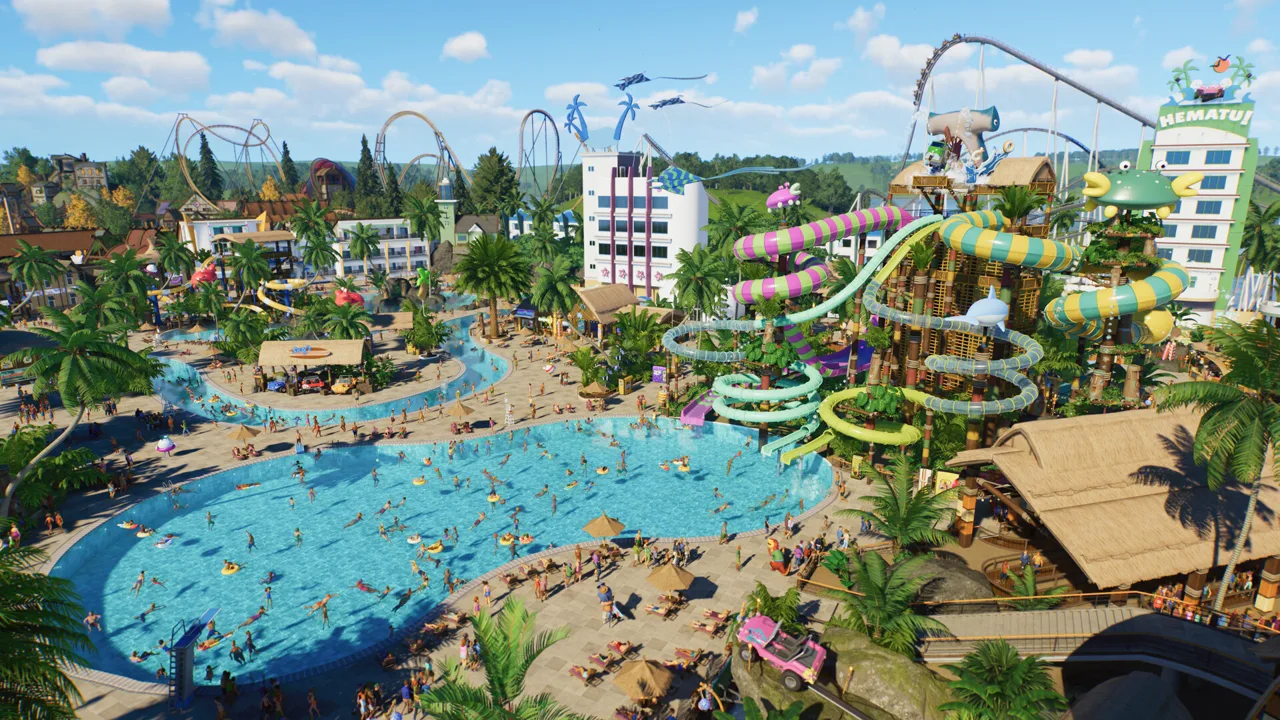
Planet Coaster 2 paths can turn an empty entrance into a sprawling plaza or connect a coaster station to the rest of your park. Choosing the right construction tool gives you control over the layout, connections, and appearance of those walkways. Start with the Line Builder for straightforward connections, then use the Draw and Stamp tools to create larger spaces.
To lay a basic walkway:
- Open the path menu and select Line Builder.
- Select a connection point on an existing path.
- Choose a straight or curved layout.
- Adjust Line Width and inspect the preview.
- Position the endpoint and place the section.
- Continue building toward your next destination.
Line Builder supports length and angle snapping, along with options for square or curved connections. Enable snapping when you want consistent angles or repeated lengths; switch between straight and curved sections as your route develops.
For construction closer to the original game, select Classic Paths. This tool places fixed-length sections instead of letting you freely extend each line. Use it when you want to work through a route one segment at a time.
Shortcut: Double-click an existing path on PC, or double-tap A on Xbox or Cross on PlayStation, to open the path tools with that path’s style selected.
Official page: Planet Coaster 2 (planetcoaster.com)
Understand Standard, Queue, and Staff Paths
The three path types serve different purposes. Select the type before building so your public walkways, ride entrances, and backstage routes function as intended.
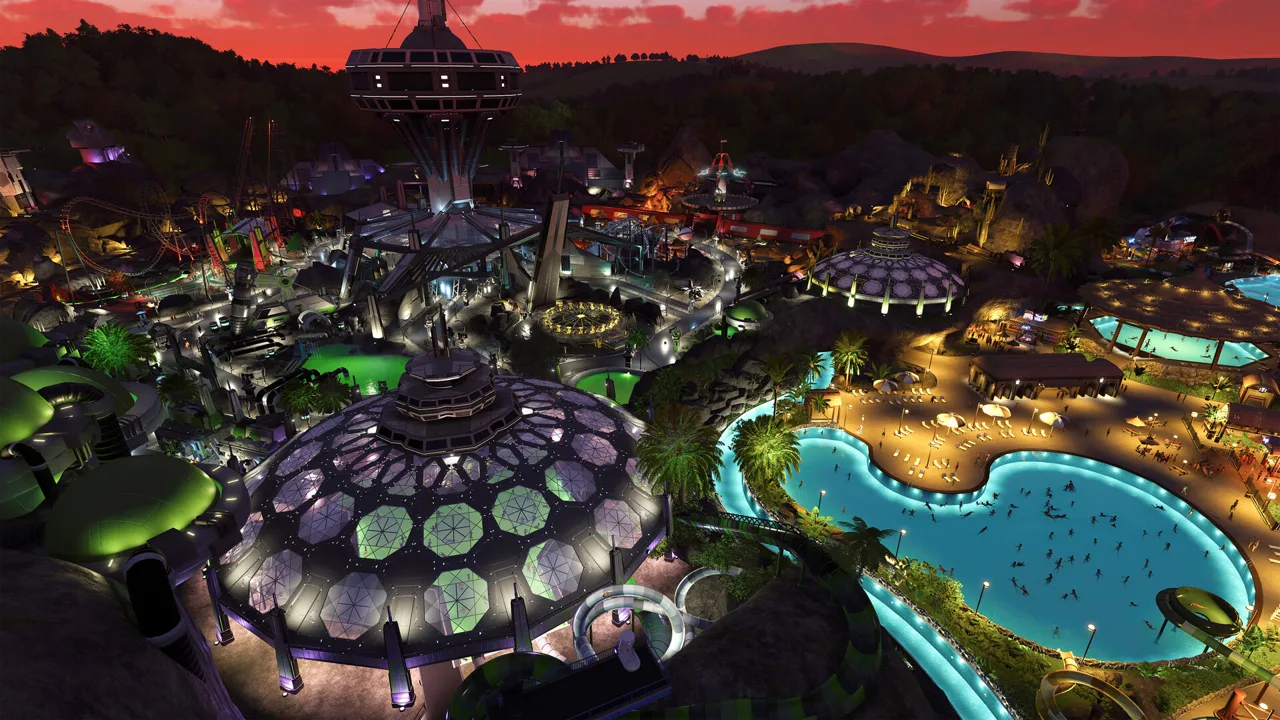 Image: Steam / Frontier Developments
| Path type | Function | Connection details |
|---|---|---|
| Standard | General guest circulation and ride exit routes | Connects public areas throughout the park |
| Queue | Dedicated access to a ride entrance | Runs between the ride entrance and the standard path network |
| Staff | Access to areas reserved for employees | Keeps visitors out of staff routes and backstage spaces |
Build a ride’s queue between its entrance and a standard walkway, then connect its exit using standard pathing.
Guests can also queue on standard paths when necessary. Dedicated queue paths still give you a separate space to shape the approach to an attraction. Keep that distinction in mind when planning a ride entrance beside a busy public route.
Use staff paths around employee buildings and maintenance areas when you want those sections separated from visitor access.
Build Plazas With Draw, Stamp, and Rounding Tools
Large paved areas do not have to be assembled entirely from narrow strips. The Draw and Stamp tools let you create filled spaces, while Rounding softens angular corners.
Draw a Custom Plaza
The Draw Tool creates a filled path area from an outline made with straight or curved edges.
- Select the Draw Tool.
- Begin your outline, using an existing path connection where appropriate.
- Place points to define the plaza’s perimeter.
- Connect the outline back to its starting point to close the shape.
- Inspect the resulting paved area before extending it.
Use length and angle snapping to control the outline more precisely. For a plaza between existing walkways, establish its boundaries with Line Builder, then fill the space using Draw or Stamp.
Assemble Shapes With Stamp Builder
Stamp Builder places shaped areas of path, including squares, hexagons, and circles. Its point snapping option helps align stamp edges with existing paths.
Enable the stamp grid when working with tessellating shapes such as squares or hexagons. The visible grid helps you see how the pieces fit together. Advanced Move also works with stamps, giving you additional placement control.
Round Corners and Control Overlap
Select Rounding, adjust its strength slider, and hover over a corner to preview the result. Change the strength until the curve suits the surrounding layout.
When adding paving over existing paths, pay attention to Merge:
- Merge enabled: Newly placed paths take priority over existing paths.
- Merge disabled: Existing paths retain priority over the new placement.
Disable Merge when you want an established curve or surface to remain intact while filling the surrounding space. Enable it when the new placement should replace the overlapping area. This setting also matters when adjoining sections use different textures or colors.
Create Ramps, Stairs, and Elevated Walkways
Line Builder and Classic Paths both support changes in elevation. While using either tool, hold the elevation control and move the path up or down.
| Platform | Hold while adjusting path elevation |
|---|---|
| PC | Shift |
| Xbox | X |
| PlayStation | Square |
The slope determines whether the result becomes a ramp or stairs. Adjust the height while watching the preview to get the connection you want.
Set a Consistent Working Height
Working Height establishes the elevation plane on which you build. Setting it to 2 m, for example, places that working plane 2 meters above sea level.
That measurement is an absolute elevation, rather than a distance above the ground beneath each section. Use it when laying out paths over uneven terrain, extending a walkway beyond a cliff, or establishing a route through terrain or underground.
Set the working plane before drawing a larger elevated area so its placement follows the intended level.
Switch a Flume Entrance to Stairs
Flume platforms have an entrance option that can save you from constructing a separate winding ascent.
While placing an entrance gate on a flume platform, press:
- PC: Control
- Xbox: Y
- PlayStation: Triangle
This switches between a traditional platform entrance and a vertical flight of stairs. Preview both arrangements before committing space around the platform.
Change Path Textures, Railings, and Extras
Update 11 Hotfix 15, released August 25, 2026, corrected shadows casting incorrectly onto curbs. For the appearance of the paths themselves, use the Customize Style and Customize Extras tabs.
These controls let you change surface textures, configure railings, and enable extras that automatically place benches or bins as you build. Some textures and railings support Flexicolor, allowing further color customization.
Choose your surface and extras before extending a themed area. This lets the next sections carry the intended appearance as you place them.
Copy an Existing Design
Use Copy Existing Texture and select a path to pick up its texture and Flexicolor settings. Selecting a border can also copy railing options.
Use this when returning to a previously built area: sample the existing design, then continue construction without manually rebuilding its settings.
The double-click or double-tap shortcut also opens the tools with the selected path’s style ready to use.
Repaint Paths With Customize Brush
To change paving you have already placed:
- Choose the desired settings in Customize Style and Customize Extras.
- Select Customize Brush.
- Adjust the brush size.
- Paint the path surface to change its style or add or remove supports.
- Paint the curbs to add or remove railings using your selected settings.
Use a larger brush for broad changes and a smaller one near boundaries between styles.
Railings are decorative; guests stay on paths without them. Add them where their appearance suits the build, such as along an elevated walkway or beside a themed plaza.
Reshape Borders and Delete Precise Areas
You can change a plaza’s outline without removing the entire paved area. Select the Edit Tool, choose an existing path border, and drag its move control to reshape that edge.
The same tool can return you to Draw so you can add to the layout. Use border editing when an existing space needs a different outline; use Draw when you want to extend it.
For removal, open the Delete tab. It contains a resizable brush and a stamp-based deletion tool.
- Delete brush: Removes path within the selected brush area.
- Delete stamp: Cuts a specific shape out of existing paving and supports Advanced Move for precise positioning.
Reduce the brush size before removing a small section near a connection you want to preserve. Inspect the affected area carefully, since a larger brush can remove more paving than intended.
To create a planting island or an opening for scenery inside a plaza, position a deletion stamp over the intended space. Adjust its placement with Advanced Move, then remove that shape while keeping the surrounding paving.
Continue with
 Planet Coaster 2 Building Guide: Better Custom ParksUse this Planet Coaster 2 building guide to create custom shops, master grids, improve roofs and lighting, and build parks with more detail and less fuss.
Continue exploring
Join the community
Official channels for news, updates and player help: