
Planet Coaster 2 Building Guide: Better Custom Parks
Use this Planet Coaster 2 building guide to create custom shops, master grids, improve roofs and lighting, and build parks with more detail and less fuss.
Jump to
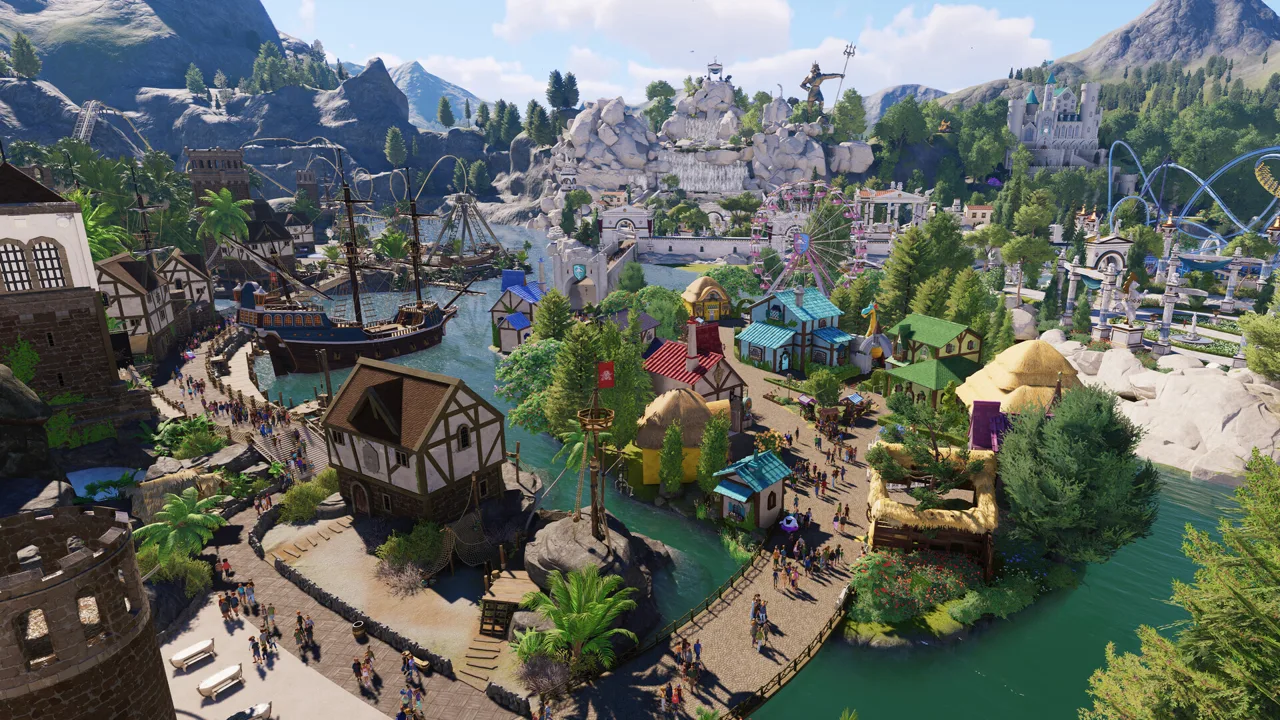
Start With a Shop Shell
A convincing park starts with buildings that feel right at guest level. This Planet Coaster 2 building guide walks you through custom shops, grids, roofs, and scenery tools so you can spend less time fighting placement and more time shaping your park. Begin by editing a shop shell to learn how the pieces fit together.
A shell is the decorative structure surrounding a shop or facility. A blueprint can contain a shell, a complete functioning building, or other scenery, so inspect what you have placed before adding another facility.
To customize an existing shell:
- Open Scenery and filter for buildings using the castle icon.
- Choose a shell and place it in an open working area.
- Select the whole structure, then choose Edit Building.
- Select individual walls, signs, and roof sections to inspect or replace them.
- Open Facilities > Create Custom and select the shop or facility you want.
- Move it toward the shell until the Add To prompt names that shell, then select it to join the group.
- Rotate and position the facility so its entrance or serving window faces the opening.
Use theme and content filters to narrow the catalog. The Facilities menu includes complete buildings, while Scenery gives you access to a wider selection of decorative shells.
Leave room for the facility itself. Staff rooms are larger than regular shop units, so check their footprint before committing to a compact facade.
Official page: Planet Coaster 2 (planetcoaster.com)
Understand Building Grids and Scenery Groups
Two types of construction pieces explain much of the placement behavior:
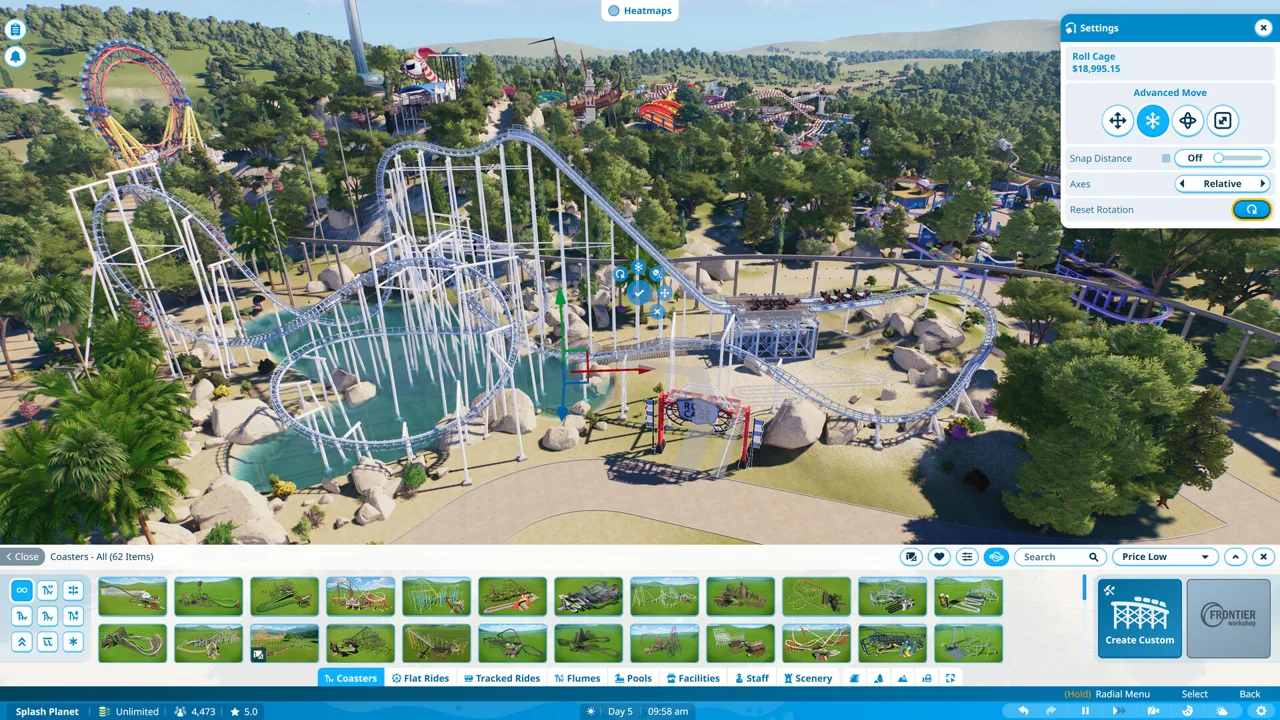 Image: Steam / Frontier Developments
- Grid-based building pieces: Walls, floors, and roofing that follow a building grid. These pieces cannot be scaled.
- Scenery pieces: Objects that allow free placement, rotation, and scaling.
Look for the faint grid pattern behind an item's catalog icon to identify a grid-based piece.
Placing a grid piece establishes a building group. While editing that group, additional building pieces follow its grid. Select the completed group outside the editor to move the structure together; enter the group to adjust its individual components.
Scenery can join a building group, too. Once attached, select it inside the group editor when you want to move or resize that individual object.
For custom decorative assemblies, create a group containing only scenery pieces. That preserves the group's free rotation and scaling. Adding a grid-based piece introduces the building grid's restrictions.
Use grid walls to enclose a facility, then add scalable scenery for smaller trim, signs, and decorative extensions. This gives you a straightforward structural frame with more control over the finishing details.
Build Custom Walls, Fronts, and Roofs
For a building made from scratch, place the functional shop or facility first. Its footprint gives you a reference for the surrounding shell.
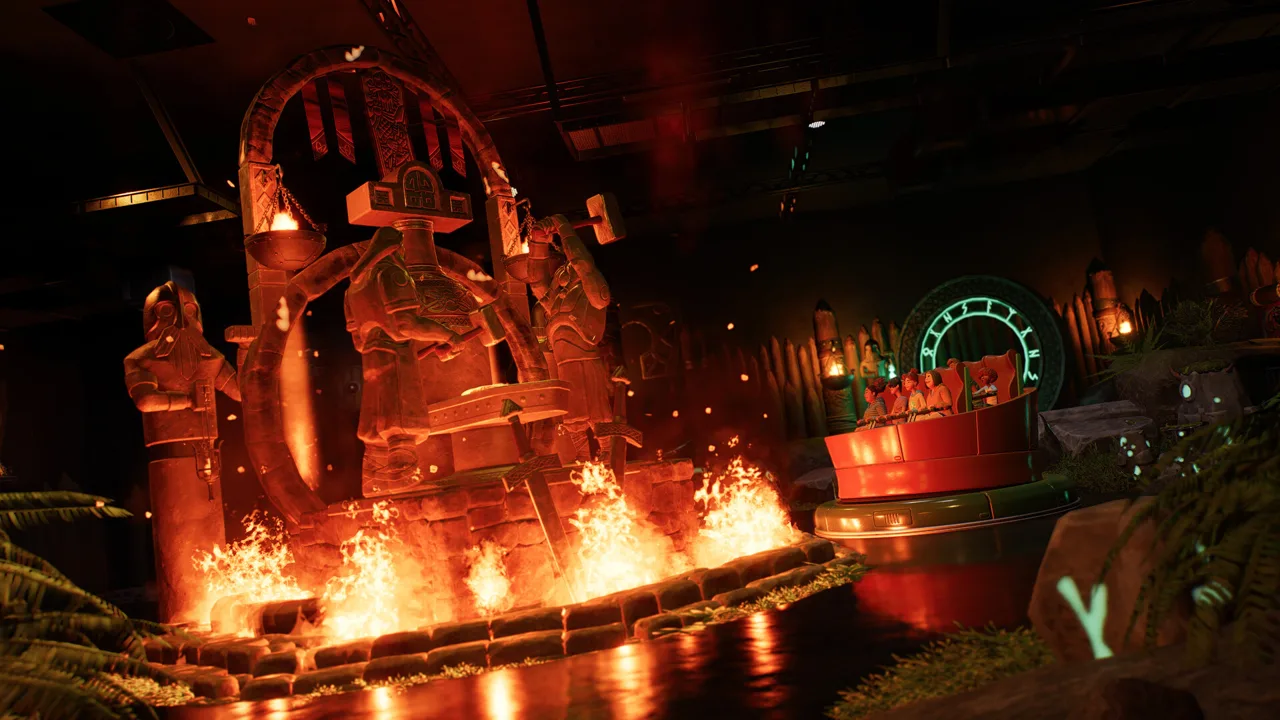 Image: Steam / Frontier Developments
Enclose the Facility
Open Facilities > Create Custom, place your chosen unit, then find wall pieces under Scenery > Create Custom > Building > Walls.
Add the side and rear walls, followed by a front panel suited to the building:
- Shops: Leave an opening for the serving window.
- Staff facilities: Match the front to the staff entrance.
- Guest facilities: Leave the broader entrance area clear, particularly on toilets and changing rooms.
Use matching wall pieces when replacing a blueprint's frontage. Select an existing component and read its name to identify the theme set, then filter the catalog accordingly.
Arches can frame wider facility entrances. Check the opening from guest height before adding signs or awnings.
Start With a Simple Roof
Choose a flat roof or a complete roof piece while learning placement. For a pitched roof, add matching triangular wall sections to close the ends.
Corner-based roofs require their sections to be rotated and aligned. Inspect the roof from above and from both ends to catch gaps.
For a lower custom roof, use scalable, nongrid roof attachments where available. Another option is to reduce the building grid's size and height settings and arrange 2m or 4m eaves pieces closer together. The 1m version produces a stepped profile with this technique.
When a custom roof leaves an unusually shaped gap, use freely placed scenery to fill it. Align the filler to the roof angle, then fine-tune its position with Advanced Move.
Save a finished shell as a blueprint to reuse it elsewhere. If you want an empty version, remove the functional facility before saving that version.
Master Placement and Faster Duplication
Learn these PC controls alongside the on-screen tools:
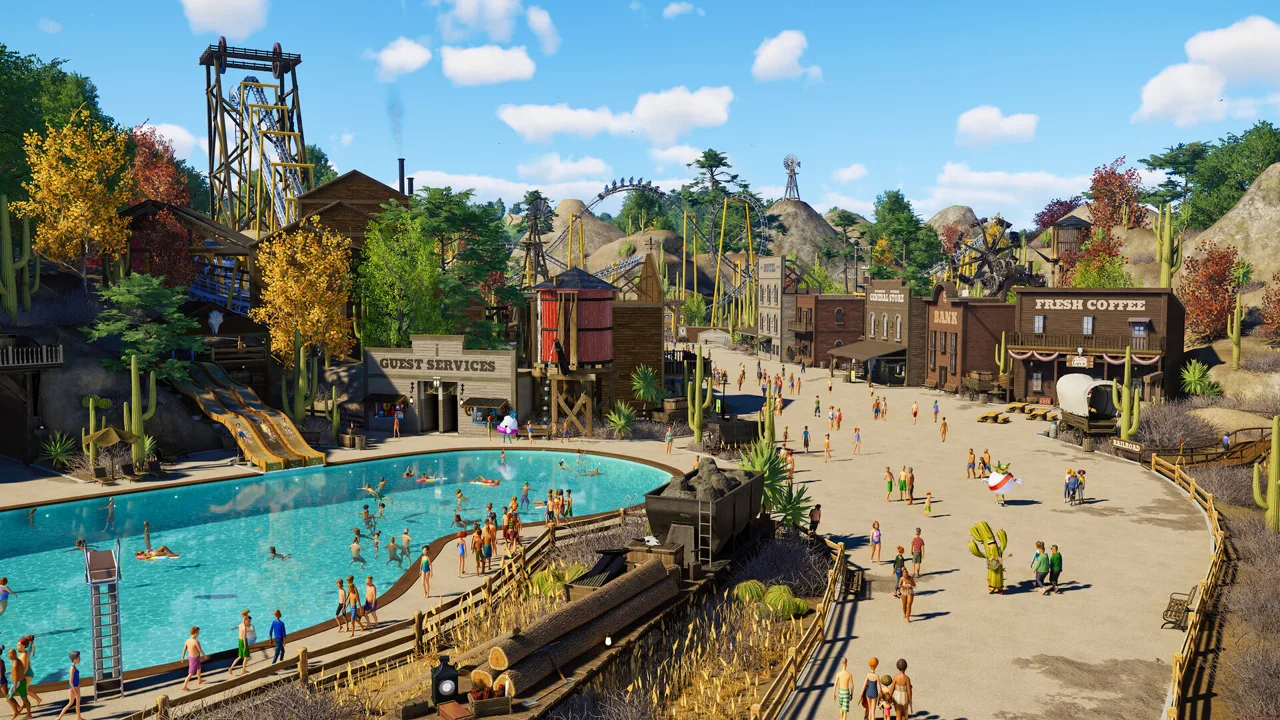 Image: Steam / Frontier Developments
- Z: Rotate a piece in 90-degree steps; hold it for finer rotation.
- R or double-click: Enter a building group.
- Ctrl + D: Duplicate a piece or building.
- Ctrl + X: Access Advanced Move.
- X: Cycle between move, rotate, and scale tools.
- Shift while moving the mouse: Adjust placement height.
With Advanced Move, drag an axis handle to adjust one direction at a time. Use the rotation rings to change an object's angle.
For signs, inspect Stick to Surface, Align to Surface, and Snap to Position when placement behaves unexpectedly. Position the sign first, then scale it to fit the facade. Confirm size changes as you work, and confirm recoloring before leaving the editor.
Build Straight Before Following a Curved Path
Construct a detailed building aligned with the world axes before rotating it into its final location. This keeps repeated decorations easier to line up.
When a selection contains differently rotated scenery pieces, its relative movement axes can become awkward. Switch to world axes while working on an aligned structure.
For long fences or repeated beams, duplicate in batches:
- Build and align a short section.
- Duplicate that section.
- Select the expanded run.
- Duplicate the larger selection again.
For angled assemblies that remain difficult to repeat, build the scenery inside a group anchored by a small grid piece. The building grid provides consistent axes for duplication. Remove the anchor pieces when the repeated structure is finished.
Give Buildings Better Scale and Depth
Check proportions early. Place a guest-sized stone figure beside the building and compare doorways, awnings, and roof height against it.
If a shop looks oversized, reduce its decorative mass with scalable scenery. Keep the enclosure around the facility large enough for the functional unit, then use smaller pieces for the visible architectural details.
Break up a flat facade with:
- Recessed windows.
- Projecting awnings.
- Layered window frames.
- Beams and trim.
- Small offsets between wall sections.
For a recessed window, assemble the surrounding wall from scenery pieces, leave an opening, and move the window back into it. This adds depth beyond mounting a window directly onto a solid wall.
Experiment with pieces outside their usual role. A flat sign can become an awning, and a scaled-down coaster support can become narrow architectural trim.
Give elevated ride stations extra attention. Add a foundation, vary the materials along the lower walls, and use rocks or foliage around the base. Shape nearby terrain to help the station connect visually with its surroundings while preserving its access routes.
Keep frequently used components in Favorites. For a larger project, lay out a small palette of walls, beams, roofs, and signs beside the work area so you can compare pieces at full size.
Connect Paths and Plan Water Park Facilities
Test path connections before decorating the entrance.
Facilities placed inside shells attempt to connect to nearby paths. A poorly aligned shell can interfere with placement or cause path and terrain adjustments, depending on your settings.
If alignment becomes difficult, finish the building in an open area, move the complete group into position, and inspect its connection again. Keep decorative panels clear of entrances and serving windows.
Use plazas to give important buildings breathing room. Check the approaches to shops and rides while laying out the main pedestrian routes.
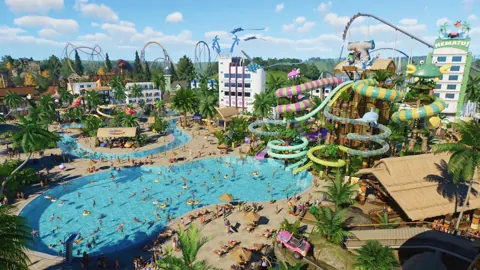
For a water park area, reserve space for the facilities guests need alongside the pools and flumes:
- Changing rooms.
- Shade.
- Sunscreen.
- Lifeguard coverage.
Use heat maps to inspect park needs, then select individual guests for more detail. Address those needs while the area still has room for additional facilities.
Light Interiors and Fix Visual Problems
Check enclosed shops and stations after adding the roof. Global illumination can leave interiors dark even when the exterior looks bright.
Use spotlights to illuminate the interior, then add decorative fixtures to suit the theme. Conceal functional lighting within ceiling detailing and inspect the result from inside. For larger spaces, incorporate skylights with glass pieces and custom framing.
Check both the light level and the visibility of the fixtures before finishing the ceiling.
If overlapping walls or trim flicker, use Advanced Move to nudge one surface slightly forward or backward. Make the adjustment small enough to avoid a visible seam.
When flat roofing appears to bleed through a wall, try moving the affected pieces away, rotating them, and returning them to position. Recheck the surface before rebuilding the surrounding structure.
Recognize Construction Issues Addressed by Updates
Update 11 Hotfix 15, released August 25, 2026, addressed several problems that could interrupt construction or make a finished build look wrong.
| Affected element | Change in Update 11 Hotfix 15 |
|---|---|
| Walls and buildings | Corrected weaker-than-intended sound blocking. |
| Phoenix ride blueprint | Fixed a terrain-intersection warning that prevented placement. |
| Scenery selected after connecting a Wait Sign | Fixed objects incorrectly turning green during multi-selection. |
| Curbs | Corrected incorrectly cast shadows. |
If the Phoenix blueprint refuses placement with that terrain warning, check that the hotfix is installed before reshaping the site. Likewise, check the installed update before spending time rebuilding curbs or replacing scenery affected by those specific display problems.
Continue with
 Planet Coaster 2 Paths: Build Plazas, Ramps, and MoreMaster Planet Coaster 2 paths with tips for plazas, queues, stairs, ramps, railings, and precise edits. Learn the tools and build connected park walkways.
Continue exploring
Planet Coaster 2 DLC: Packs, Prices and New Features
Explore Planet Coaster 2 DLC packs, ride counts, prices, and Spooktacular features. Compare paid additions with free updates before expanding your park.
Planet Coaster 2 Spooktacular Pack: Full DLC Guide
Explore the Planet Coaster 2 Spooktacular Pack, including Walkthrough Attractions, seven rides, spooky scenery, entertainers, and Halloween sound effects.
Join the community
Official channels for news, updates and player help: