
Planet Coaster 2 Tips: Build Faster and Manage Better
Explore Planet Coaster 2 tips to build faster, plan paths, manage guest needs, improve ride capacity, and create detailed parks with less repetitive work.
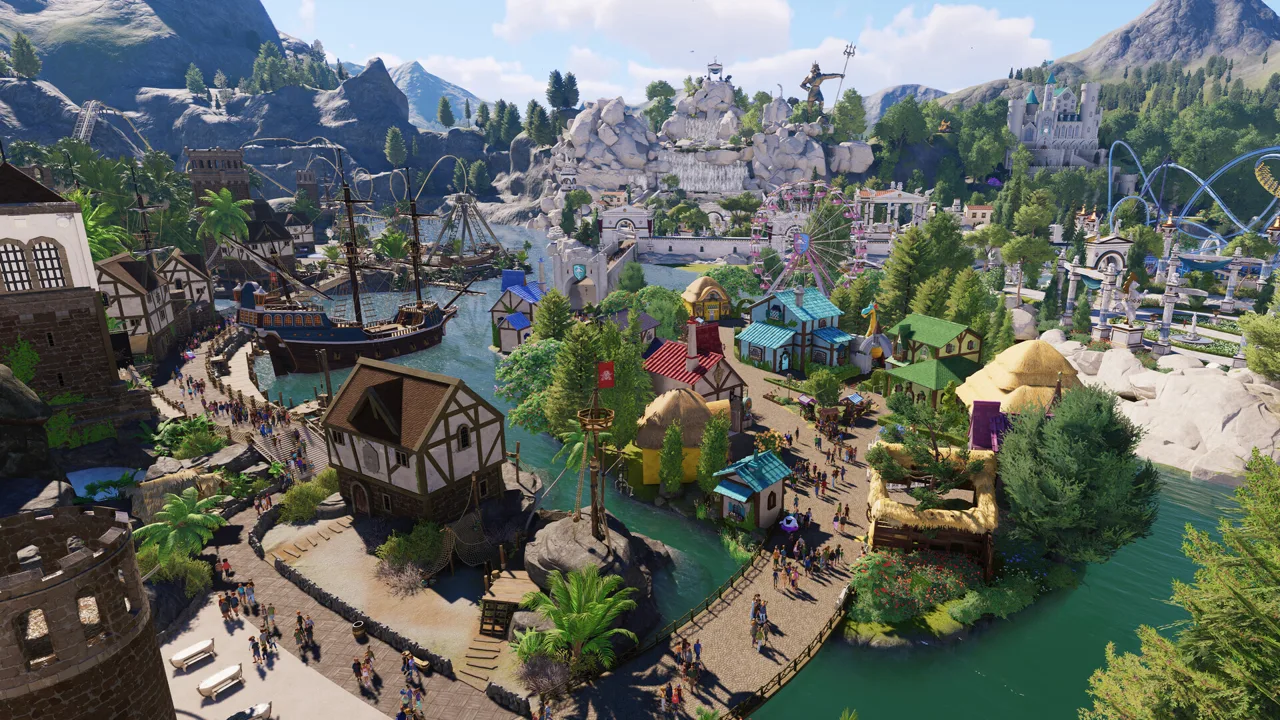
A spectacular coaster still needs working paths, happy guests, and a budget that survives opening day. These Planet Coaster 2 tips help you handle those essentials while cutting down the repetitive work of building. Start with the tools and guest needs, then tackle custom ride scenery and animated effects.
Learn the Building Tools Before Expanding
1. Take apart blueprints to learn how buildings work
Place a Frontier blueprint and examine its individual pieces. Look at how walls meet, how roofs are assembled, and which objects supply the smaller details.
Use a practice build to separate pieces and understand their arrangement. This gives you specific techniques to reuse when you start designing your own structures.
When you want individual building pieces rather than a finished blueprint, select Create Custom. The building browser initially emphasizes blueprints, so learn where that button sits before hunting through nested menus.
2. Learn a few PC shortcuts at a time
Start with shortcuts that handle repeated actions:
| PC input | Building action |
|---|---|
| Ctrl + D | Duplicate a selected piece or building |
| R or double-click | Enter a building group |
| Z | Rotate an object by 90 degrees |
| Hold Z | Adjust rotation more precisely |
| Shift | Adjust vertical placement |
Practice these on a small structure before using them throughout your park. Check your bindings if you have customized the controls.
Right-click also backs out of menus, but keep the pointer away from scenery while doing it: in a building context, you can accidentally delete a piece.
3. Adjust the interface before a long building session
Use the interface scale setting to make text and menus comfortable to read. Visual settings also offer interface colors and color alternatives.
On PC, enable Edge Scrolling in the mouse and keyboard settings if you prefer moving the camera by pushing the pointer toward the screen edge. Adjust its speed and apply the change before returning to your build.
Official page: Planet Coaster 2 (planetcoaster.com)
Build Scenery With Less Repetition
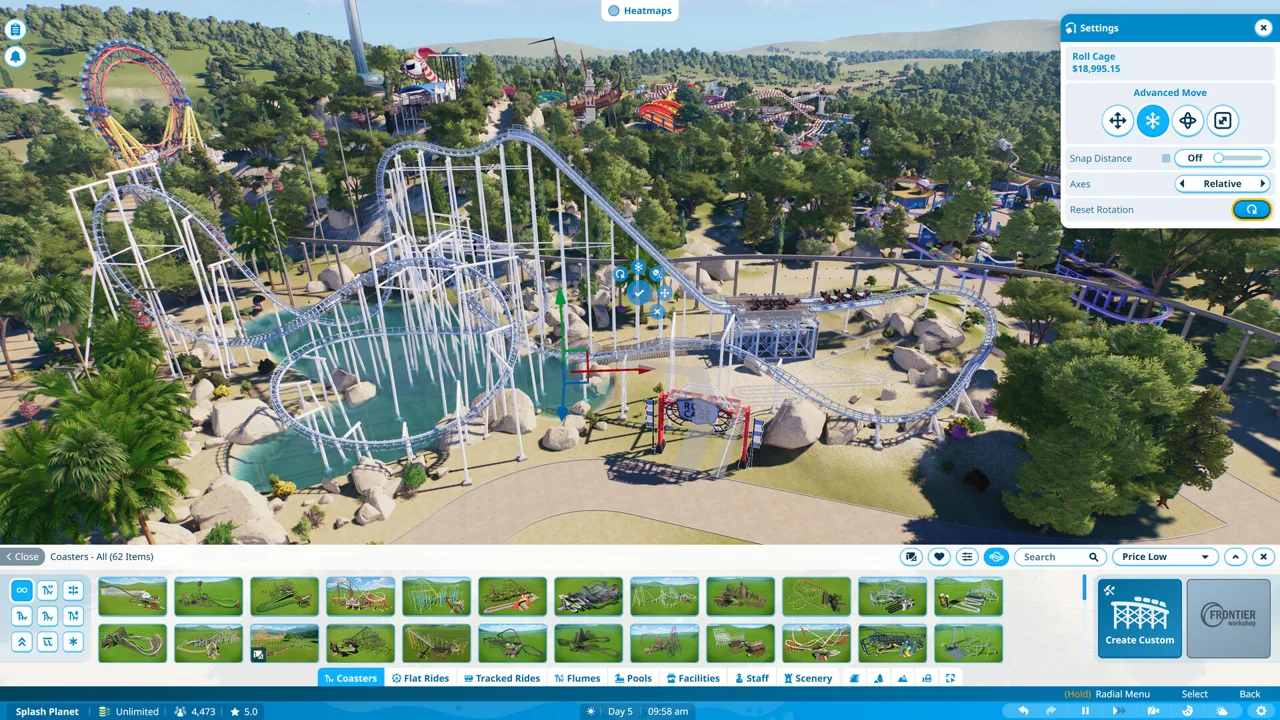 Image: Steam / Frontier Developments
4. Duplicate finished sections instead of individual pieces
For a long fence, build a small section and duplicate it. Then select the combined sections and duplicate those.
A sequence of two, four, and eight repeated sections grows much faster than placing every post separately. Group the pieces you want to repeat so you can move and copy them together.
Finish the spacing and colors on your initial section before multiplying it. Otherwise, you create the same correction across the whole structure.
5. Search by material when you need a particular texture
Search terms such as metal, wood, and organic help you find pieces beyond their obvious uses. You can also open the scenery filters and choose a Base Material, including stone, rope, concrete, and other materials.
Use this when you know how a surface should look but cannot remember an object's name. A metal prop might supply the trim you need even if it belongs to a completely different theme.
6. Rotate and scale objects into new uses
Try flat objects as floors or ceilings, windows as wall details, and scaled lettering as small decorative elements. Rotate flowers upside down to experiment with a mulch-like surface.
Work on one detail at a time and inspect it from guest height. An unusual piece can look convincing from one angle while exposing its original shape from another.
When recoloring an object, click Confirm before moving on.
7. Make scenery brushes for repeated landscaping
Create a custom scenery brush when you need a mix of plants or props across a larger area:
- Open the scenery brush customization tools.
- Create and name a new brush.
- Add the objects you want it to place.
- Adjust rotation, minimum and maximum scale, and object spacing.
- Save the changes.
Use yaw rotation for plants you want to keep upright. Full rotation also changes their orientation on other axes, making it more suitable for scattered debris or deliberately irregular arrangements.
A cactus brush can handle a desert planting scheme; a collection of sci-fi panels, crates, and cables can create scattered scrap.
Plan Paths and Terrain Around Guest Movement
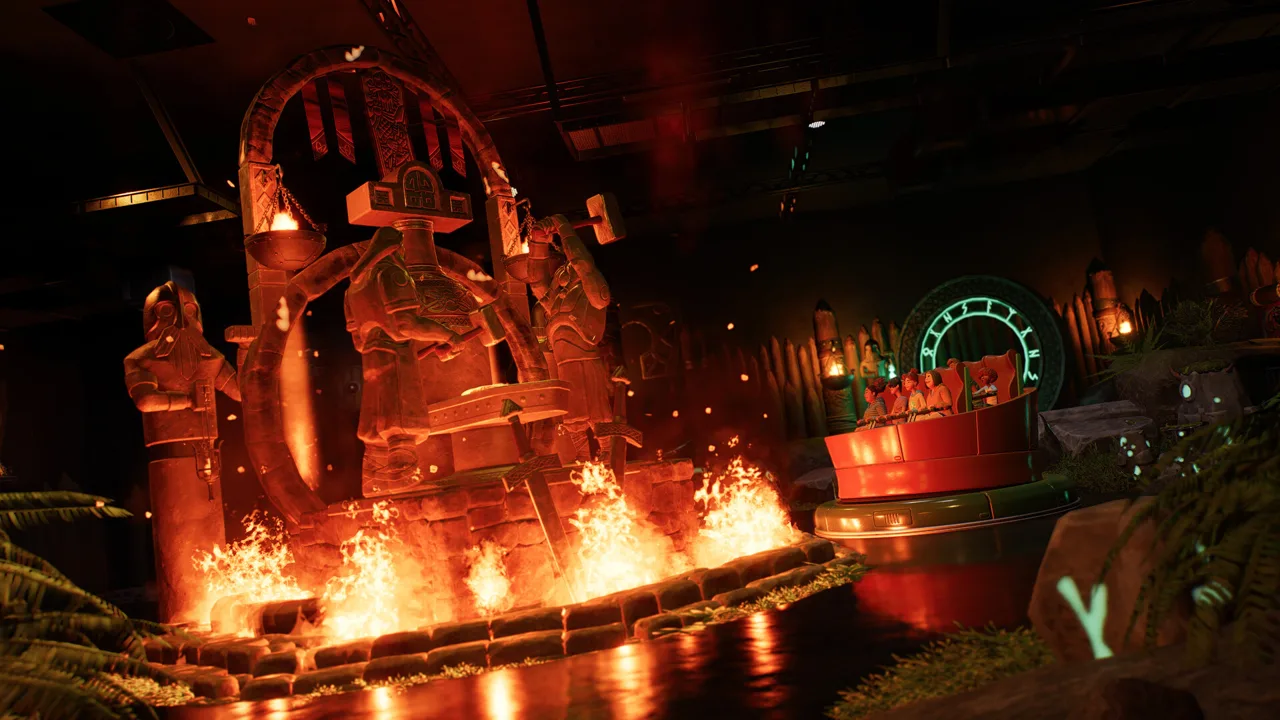 Image: Steam / Frontier Developments
8. Double-click an existing path to continue its style
Double-click the path you want to extend. This selects its path type and settings, letting you continue without rebuilding the appearance through the customization menus.
Use this shortcut when moving between differently themed areas. It saves repeatedly selecting matching colors and materials.
Double-clicking also provides quick access to terrain editing and lets you reposition ride entrance and exit gates.
9. Leave unpathed space beneath plaza decorations
Guests can walk through scenery placed on a walkable path. For a statue or planted island, remove the path beneath its footprint and build the walking surface around it.
Shape the opening to suit the decoration, then inspect the surrounding route while guests pass through. Crowds can still push guests slightly into the edges, so leave some room around the object.
Apply the same technique to hedges and other landscaping that divides a plaza.
10. Blend placed rocks into the terrain
After arranging rocks for a hillside or mountain, fill the spaces between them with terrain. Smooth the added terrain, remove excess where needed, and paint it to match the rocky surroundings.
Sink plants into selected gaps to break up the surface. Keep some rock edges exposed so the terrain does not swallow the shapes you placed.
You can also manipulate terrain beneath paths. Use that flexibility to refine slopes around an established walkway.
Manage Guest Needs and Spending Before Adding More Rides
 Image: Steam / Frontier Developments
11. Use heat maps to find the problem area
Open the heat maps to identify where needs are going unmet, then select guests in that area to inspect their thoughts and their group's experience.
Follow a simple troubleshooting sequence:
- Find the area showing a need.
- Inspect guests there.
- Address the specific complaint.
- Revisit the area after guests have had time to use the change.
If complaints center on amenities, spend on those facilities before adding another attraction. Use guest feedback to choose the next purchase.
12. Include power and amenities in each expansion budget
Plan an expansion as a working area: attractions, paths, power, amenities, and staffing all need attention.
Check that new attractions have the power they need before spending the remaining budget on scenery. Leave room in your spending plan to respond to problems after opening.
Add themed decoration in stages while monitoring the park's finances. This lets you develop the area's appearance without committing every available dollar at once.
13. Check staff morale alongside guest happiness
Inspect staff needs and morale while reviewing park operations. Address unhappy staff before continuing a major expansion.
Keep entertainment spending in the same review. Parades satisfy guests' Entertainment Need, but they also cost money to operate. Check the budget before adding one to an already expensive park.
Build Water Parks With Their Supporting Facilities
14. Plan changing rooms, shade, and lifeguards with the pool
A pool area needs more than water and a slide. Include these essentials in its layout:
- Changing rooms
- Lifeguards
- Shade
- Access to sunscreen
Reserve space for them while arranging pools and connecting paths. After opening, inspect guests in the water park and use heat maps to identify needs that still require attention.
15. Use wave machines to change the pool's character
Search scenery for wave to find wave machines, then place them in the pool to create moving water.
Choose their placement alongside the pool's theme. For a beach-style area, incorporate the equipment into the surrounding scenery while keeping guest facilities accessible.
Tune Ride Operations Before Building Another Attraction
16. Use block sections when you want multiple coaster trains
On a coaster that supports them, open its operations settings and select Block Sections. A suitable block layout allows multiple trains to operate.
Build and test the layout, then watch where trains stop and how boarding proceeds. Add trains only after checking how the existing operation flows.
Lapping serves a different purpose: it sends the train through the station for additional circuits before unloading. Use it when you want a repeated ride experience, and watch how that affects the time between boarding opportunities.
17. Customize flat ride sequences
Open a flat ride's customization options and inspect its available sequences. Different rides offer different movements, such as swings, loops, stalls, or splash variations.
Test changes before opening the ride. Add or remove sequence steps to shape the experience, then watch the full cycle rather than judging it from the first movement.
For content affected by Update 11 Hotfix 15, released August 25, 2026:
- Fourth Wall had its Spin Cabin sequence corrected.
- Studio Tour and Re-Motion gained Load/Unload Stations.
- The Phoenix ride blueprint received a fix for an intersecting-terrain placement warning.
18. Explore coaster customization settings in a practice build
Enable Allow Interchangeable Coaster Cars in the game options to access alternative car types on supported coasters. Select the coaster, open customization, and inspect its available Car Type choices.
For more experimental layouts, Sandbox settings include Extended Track Limit under tracked ride settings. This expands design possibilities, but individual restrictions can remain.
Test each design after changing its layout or cars. Use a separate practice build to explore unusual combinations before designing a whole themed area around them.
Avoid Common Scenery Mistakes
19. Separate overlapping surfaces to stop flickering
Two surfaces occupying the same position can flicker as the camera moves. Select one and use advanced movement to shift it slightly away from the other.
If its building grid prevents that adjustment, split the object from the building first. Make the smallest offset needed, then inspect the result from several angles.
Use this fix on layered walls and decorative panels before duplicating the affected section.
20. Use symmetry for repeated ride decorations
When attaching scenery to coaster cars, use Mirrored symmetry to place matching details on both sides. Twinning and Apply to All Trains let you repeat the design across cars and trains.
Check those settings before placing a detail intended for only one car.
For circular scenery arrangements, attach pieces to a deactivated rotational moving platform and use Rotational symmetry. Adjust the symmetry count and placement to form the ring instead of rotating every piece individually.
21. Watch guests before decorating a flat ride platform
Run the ride and observe the routes guests take between its gates and seats. Keep those routes clear while decorating the unused areas around them.
Place fences and surrounding scenery only after watching boarding and unloading. Check the ride again after decorating so you can spot awkward intersections or scenery clipping.
Use the guest camera or first-person view to inspect details that are difficult to judge from above.
Add Animation With Event Sequencers
22. Loop ambient effects without attaching them to a ride
Use an event sequencer for effects such as steam around a themed shop:
- Add the effect and any accompanying sound.
- Arrange them on the timeline.
- Open the sequencer settings.
- Set self-activation to Continuous.
To leave a gap between activations, place a silent stereo trigger later on the timeline. For example, placing it at eight seconds extends the sequence so it repeats on that interval.
Start with a single effect and sound before building a larger scene.
23. Hold triggered doors open long enough for the whole train
A door trigger can activate correctly and still close while a train is passing through.
Edit the trigger sequence, select the door's Open Door action, and increase its duration. Watch the rear of the train clear the doorway during testing.
Pay particular attention near chain lifts, where a change in speed affects how long the train occupies the opening.
24. Use animation and color changes together
Compatible animated scenery can do more than play its default movement. Inspect the object's animation choices and the sequencer's trigger actions.
Color actions include Change Color on Trigger, Restore Color, and Swap Color on Trigger. Combine them with an animation to give a scene a visible change—for example, a dragon turning green during an eating animation, then returning to its original color.
Align the color transitions with the relevant movements, then play the entire sequence to check the timing.
Continue with
 Planet Coaster 2 Franchise Mode Explained: Play GuidePlanet Coaster 2 franchise mode explained: learn how to create or join a franchise, share park edits, handle editing locks, and compete on leaderboards.
Continue exploring
Planet Coaster 2 Multiplayer: How to Play With Friends
Planet Coaster 2 multiplayer lets you share parks, take turns building, and grow a franchise with friends. Learn how co-op and cross-platform sharing work.
Planet Coaster 2 Workshop: Find, Test, and Share Builds
Explore the Planet Coaster 2 workshop to find community rides, use share codes, compare coaster stats, and learn building tricks before sharing your own.
Join the community
Official channels for news, updates and player help: