
Planet Coaster 2 Building Tips for More Realistic Parks
Use these Planet Coaster 2 building tips to fix boxy shops, improve paths and lighting, and build smoother coasters with practical steps for beginners.
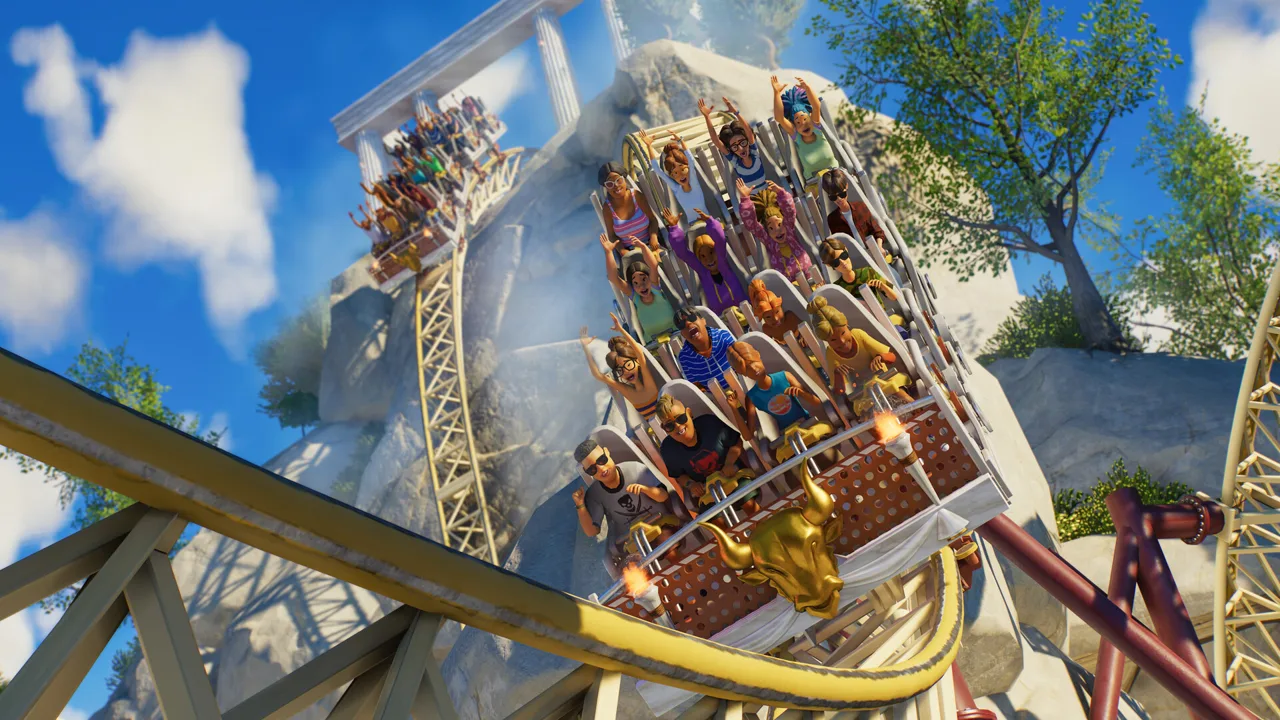
A beautifully decorated shop can still look awkward if its doorway dwarfs your guests or its entrance barely connects to the path. These Planet Coaster 2 building tips help you tackle proportions, construction tools, lighting, and coaster design before small mistakes become expensive rebuilds. Start with a working layout, then add detail where guests will actually see it.
Plan Your Paths, Facilities, and Waterpark Together
1. Leave room for connections before decorating
Place your attraction, its entrance and exit connections, and the surrounding paths before enclosing everything in scenery. Check how those connections fit together before committing to walls, landscaping, or a station roof.
Use plazas where several destinations meet, and leave space around shop fronts and ride entrances. Keep future connections in mind when positioning large attractions so that expanding the park does not require dismantling a finished building.
For curved streets, establish the path layout first, but construct detailed buildings in a separate, straight workspace. Rotate them into position once their structure is complete.
2. Give pools a complete support area
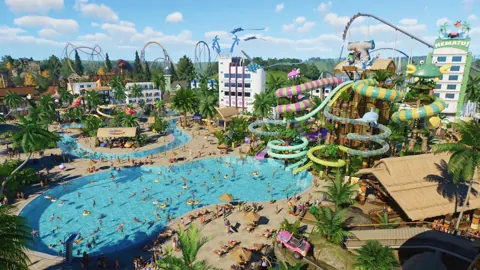
Build your waterpark facilities alongside the pools and flumes. Include:
- Changing rooms.
- Shade and sunscreen provision.
- Lifeguard coverage.
- Nearby guest amenities.
Carry the same architectural theme through these facilities. A changing room with matching colors, roof materials, and trim can belong naturally beside a pool rather than looking like an afterthought.
3. Use guest needs to guide expansion
Before adding another attraction, inspect the park’s heat maps and select individual guests to understand their needs. Address missing amenities and power requirements while planning the next area.
Keep elaborate scenery spending proportionate to your operating budget. Finish a functional attraction and its supporting facilities before committing to a sprawling decorative district.
Official page: Planet Coaster 2 (planetcoaster.com)
Get Scale and Building Groups Under Control
 Image: Steam / Frontier Developments
4. Check proportions against a guest figure
Place a stone guest figure beside your project while you build. Use it to judge doorways, windows, counters, and roof height.
Check proportions early. A roof that looks reasonable from an overhead camera can overwhelm a small storefront when viewed beside a guest.
The distinction between construction pieces matters here:
| Piece or group type | Movement and scaling behavior |
|---|---|
| Grid-based building pieces | Follow a building grid and cannot be scaled |
| Individual scenery pieces | Allow free positioning, rotation, and resizing |
| Groups containing only scenery pieces | Retain group scaling and flexible rotation |
Use grid pieces for straightforward construction, then add scenery pieces where you need finer proportions. For a small shop, keep the required facility footprint intact and build a more carefully scaled facade around it. Where counter versions of facilities are available, use them to give yourself more freedom around the serving area.
5. Match the roof to the building underneath
Check roof height separately from wall height. A steep, oversized roof can make an otherwise compact building feel bulky.
Try scalable, nongrid roof attachments when their shape suits the project. For a shorter roof made with grid pieces, reduce the building grid size and height, then place 2 m or 4 m eaves pieces close together. Avoid applying the same technique to the 1 m version, which produces a stepped profile.
Fill awkward side gaps with scenery panels. Use surface alignment to establish the angle, then Advanced Move to position each panel.
Make Alignment and Repeated Details Easier
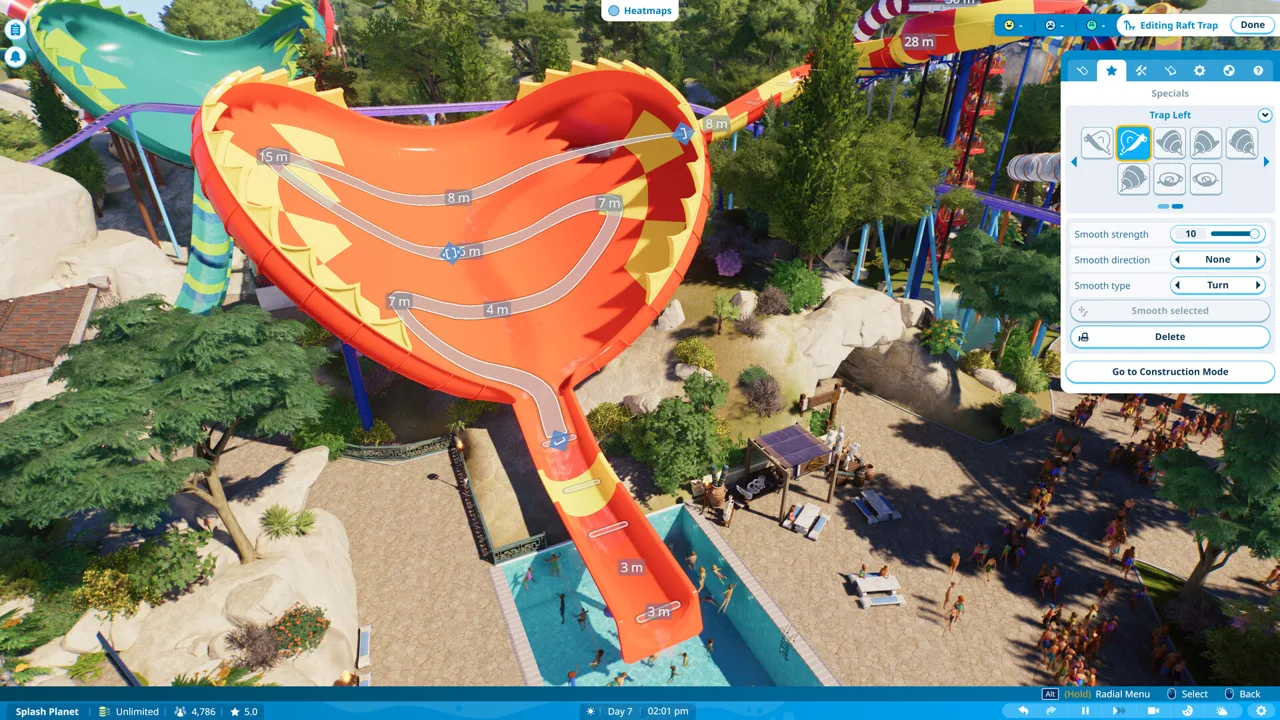 Image: Steam / Frontier Developments
6. Build straight before rotating into place
Construct detailed facades aligned with the world axes. Duplicate windows, beams, and trim while the structure is still straight, then move and rotate the finished group beside your path.
Selections containing differently rotated scenery pieces can produce an awkward relative movement axis. Starting with a straight structure gives you a useful alternative: switch to world axes when the relative arrows stop matching the direction you need.
For a curved shopping street:
- Build a storefront without rotating its base.
- Complete its repeated windows, trim, and roof details.
- Group the finished structure.
- Rotate and position it beside the curve.
7. Give custom fences a consistent grid
For a fence assembled from several angled scenery pieces, start with a small grid-based building piece and add the scenery inside that building group. This gives repeated sections a consistent reference for duplication and movement.
Duplicate and align the fence sections before removing the hidden grid pieces you no longer need. Remember the tradeoff: adding a grid piece also introduces building-group restrictions, so finish any scaling that depends on a scenery-only group beforehand.
8. Keep a small palette of useful pieces nearby
Favorite frequently used walls, beams, and trim so you can filter the browser down to familiar parts.
For a larger project, place a selection of candidate pieces behind your work area. Seeing them at full size makes it easier to compare shapes and spot an object that could serve another purpose.
Use this palette to test combinations before repeating them across an entire street.
Add Depth to Shops and Ride Stations
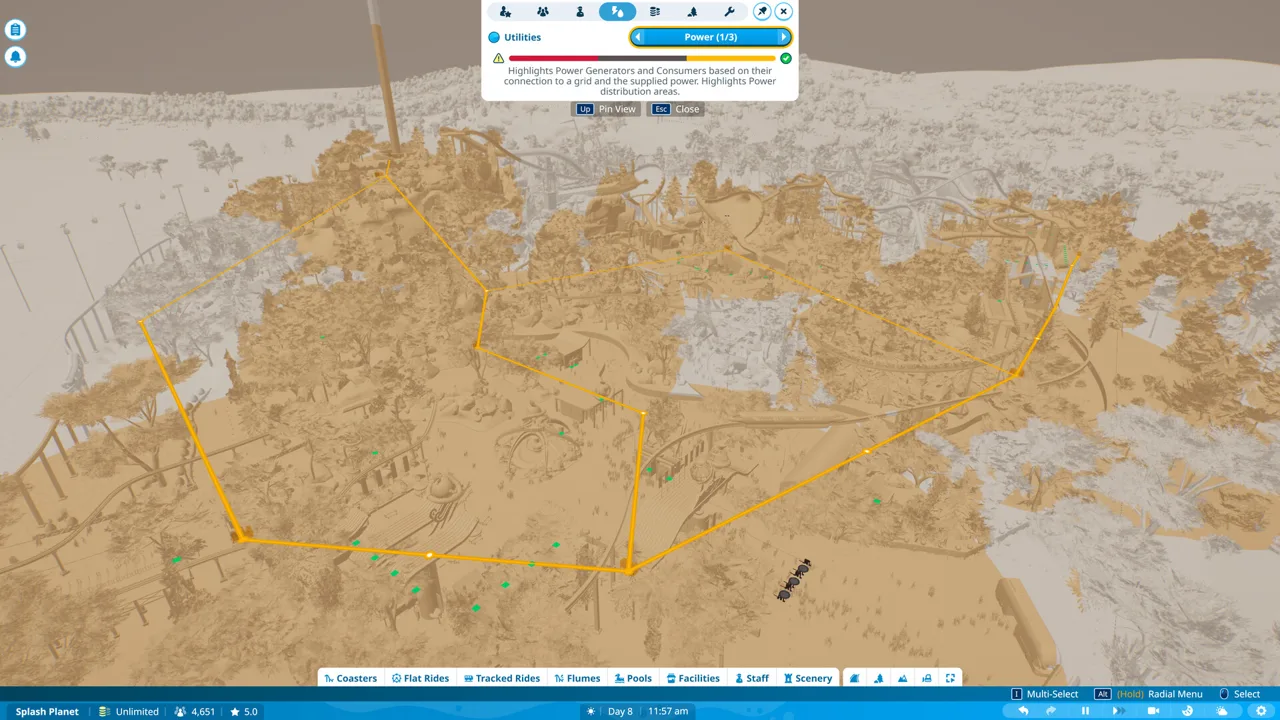 Image: Steam / Frontier Developments
9. Break up flat facades with layers
Give a plain wall depth through recessed openings, projecting details, and changes in material.
Try these adjustments:
- Leave openings between scenery wall panels and recess windows into them.
- Add a second layer of trim around window frames.
- Project an awning above a serving counter.
- Use small beams or scaled-down supports as decorative framing.
- Offset part of the facade to interrupt a long, flat frontage.
Look beyond an object’s intended use. A sign can become an awning, while a small support piece can become window trim.
If you prefer grid construction, reduce the grid size to create smaller offsets. For angled wings, work with separate building groups and rotate them individually into position.
10. Give elevated stations a convincing base
An elevated ride station leaves a large vertical area to decorate. Divide that height into visible layers instead of extending the same wall material from ground to roof.
Build a stone foundation, add panels or beams above it, and change materials where the structure needs definition. Blend rocks and planting into the base to soften the transition to the landscape.
Raise surrounding terrain where it suits the design, while preserving the station’s access connections. Check the result from path level so you can judge how the station meets the ground.
Fix Dark Interiors and Flickering Surfaces
11. Plan lighting before closing the roof
Planet Coaster 2’s lighting makes enclosed spaces noticeably different from open-air builds. Check shops, restaurants, and covered stations from inside while you still have room to adjust their structure.
Use spotlights to illuminate the space, then add decorative fixtures for appearance. Conceal spotlight fittings in ceiling recesses or behind a false ceiling, and inspect the result before finishing the enclosure.
For daylight, build skylights with glass and custom framing. Keep their proportions consistent with the roof rather than adding an oversized opening solely to brighten the room.
12. Nudge overlapping surfaces apart
Flickering between overlapping surfaces is called z-fighting. It happens when two surfaces occupy nearly the same position and compete to be displayed.
Select one piece and use Advanced Move to shift it slightly away from the other. Stop once the flickering disappears; moving it too far creates a visible seam.
Inspect duplicated wall panels, roof sections, and layered trim for this problem before repeating them throughout a build.
Build Coasters Around Speed, Shape, and Pacing
13. Establish the station and return route early
Set the station’s height with its access in mind. Build a raised path with stairs as a visual reference, then position the station to match that connection.
Leave space for the return track and final brakes before filling the area with other attractions. Near the end of construction, work backward from the station: lay out the final brake sections, then connect the remaining circuit to them.
This gives you a defined destination instead of forcing both the brakes and the connection into whatever space remains.
14. Use gradual transitions and an appropriate banking offset
Avoid abrupt changes between slopes, turns, and inversions. Give the bottom of a fast drop enough track length to transition gradually toward level.
Use banking offset to adjust the axis around which the track rolls. This helps shape rotations around the riders’ position rather than simply twisting the rails.
For a conventional sit-down train, try the demonstrated 1 m banking offset as a starting point, then inspect the train’s movement. Match the setting to the train’s geometry rather than applying that number to every coaster type.
After shaping an element, smooth it and inspect it again. Smoothing changes the geometry, so recheck both its height and the way the train travels through it.
15. Mix major elements with room to breathe
Alternate inversions with sweeping turns and airtime sections. Avoid repeating the same movement throughout the circuit.
For a gravity-driven layout, reduce the scale of later major elements as the train loses energy. Adjust each element through testing rather than forcing a fixed height sequence onto every ride.
For a custom loop, shape a taller, narrower top with broader transitions near the bottom. After smoothing, check for track intersections and adequate clearance between passing sections.
Place a major drop or impressive element within sight of the queue when the layout allows it. Use track crossovers for visual interest, then inspect the space around the moving train.
Set Up Block Sections Without Constant Stacking
16. Size brake sections for the actual train
Use block-section operation when building a coaster intended to run multiple trains. Each train needs the section ahead to clear before it can proceed.
Make stopping sections long enough for the train you are using. An 18 m stopping section suits the demonstrated 18 m train; it is not a universal length for every coaster.
Plan these sections into the layout before decorating around them. Leave enough room to adjust the approach, stopping area, and return to the station.
17. Adjust dispatch timing through testing
Watch the whole circuit with multiple trains operating. Look for trains waiting at the lift crest or repeatedly stacking on the final brakes.
Increase the minimum dispatch interval when trains are reaching occupied sections too quickly. A 30-second interval fits the example layout’s longest block, but set your own interval around your ride’s timing.
Do not automatically select the maximum available train count. Test whether an additional train improves operation or simply creates another queue on the track.
Learn From Blueprints and Recognize Fixed Problems
Update 11 Hotfix 15, released on August 25, 2026, fixed the Phoenix blueprint’s erroneous terrain-intersection warning and corrected scenery turning green after a Wait Sign was connected to a ride. It also restored the intended amount of sound blocking from walls and buildings.
18. Take blueprints apart to learn one technique
Place a Workshop blueprint in a separate work area and examine a specific feature: its roof, window framing, station foundation, or lighting arrangement.
Move pieces aside to reveal how the layers fit together. Inspect whether the structure uses grid pieces, scenery pieces, or several groups positioned at different angles.
Practice the technique on your own small building before applying it to a larger project. If you share a creation containing a substantial part of someone else’s work, credit that contribution in the description and avoid reuploading an unchanged blueprint.
19. Check your version before rebuilding around a bug
If the Phoenix blueprint produces the old terrain warning, check whether Hotfix 15 is installed before reshaping the site. Likewise, revisit older interiors after updating if their walls previously allowed more sound through than intended.
For visual defects, identify the symptom before editing the structure: overlapping surfaces need a small positional adjustment, while a fixed selection-color bug does not require rebuilding the facade.
Continue with
 Planet Coaster 2 Paths: Build Plazas, Ramps, and MoreMaster Planet Coaster 2 paths with tips for plazas, queues, stairs, ramps, railings, and precise edits. Learn the tools and build connected park walkways.
More in Building
Planet Coaster 2 Building Guide: Better Custom Parks
Use this Planet Coaster 2 building guide to create custom shops, master grids, improve roofs and lighting, and build parks with more detail and less fuss.
Planet Coaster 2 Scenery Bonus: How to Raise It and Fix 0%
Improve your Planet Coaster 2 scenery bonus with ride decoration tips, updated career targets, and troubleshooting steps for stubborn zero-percent scores.
Continue exploring
Join the community
Official channels for news, updates and player help: