
Planet Coaster 2 Steam Deck: Settings and Performance
Planet Coaster 2 Steam Deck guide covering Verified status, the built-in preset, 30 FPS performance, LCD battery life, controller tips, and Proton fixes.
Jump to
Is Planet Coaster 2 Verified on Steam Deck?
Planet Coaster 2 Steam Deck support includes Verified status, full controller support, and a built-in graphics preset for handheld play. You can build coasters and water parks using the Deck’s controls, but battery consumption deserves attention before settling into a long session. Start with the preset and a 30 FPS target to balance the creative tools with the handheld’s workload.
The PC version runs through Proton on SteamOS; its native PC platform is Windows. You can get the game through the Planet Coaster 2 Steam page.
Controller support covers navigating the park and its construction interface. Learning the camera and nested menus takes practice, particularly when moving between park management and detailed building.
Settings to Start With
Use the dedicated Steam Deck preset before adjusting individual graphics options. In November 2024, the game could reach 30 FPS fairly easily with that preset on an unmodified setup.
| Setting | Starting value |
|---|---|
| Graphics preset | Built-in Steam Deck preset |
| Frame rate target | 30 FPS |
| FSR upscaling | Quality, optionally, for sharper visuals |
Keep the preset as your baseline while learning the game. If the image looks too soft, try FSR Quality and compare the result while moving around your park. Increasing graphics settings slightly is another option, but make each adjustment separately so you can judge its effect.
Detailed scenery and distant coaster tracks make image clarity especially noticeable. Watch those areas when comparing upscaling settings, rather than judging the picture only while the camera is stationary.
Frame Rate, Power Draw, and Battery Life
The useful performance target here is 30 FPS. The November 2024 performance figures describe reaching that target with the handheld preset, rather than a sustained benchmark across every park size.
Power consumption was substantial: average draw was about 20 watts, with occasional spikes to 23 watts. Average battery life on the LCD Steam Deck was less than two hours.
Plan longer building sessions around access to power. Those LCD battery figures are specific to that model; they should not become an OLED runtime estimate.
For a meaningful settings comparison, use a park you actually intend to play. Check camera movement, construction menus, and normal park operation before deciding whether a sharper image is worth the additional workload.
Getting Comfortable With the Controls
The game supports controllers throughout, including its construction tools. Expect a learning curve around camera movement and buttons that perform different actions when pressed or held.
Start in Career Mode if you need help learning the interface. Its voiced tutorials introduce the tools while giving you a park to explore and modify.
Use blueprints to practice placing rides before tackling a custom coaster from scratch. A prebuilt ride still needs its entrance, exit, and connected paths, so it gives you useful placement practice without immediately requiring a complete track design.
Once navigation feels comfortable, move into piece-by-piece construction. The improved path tools, scalable scenery, and ability to attach decorations to rides give you plenty to work with. Use heat maps when checking park needs instead of opening individual guests repeatedly.
Proton and Frontier Workshop Troubleshooting
Start with Steam’s default compatibility setup. The game has run on SteamOS without custom launch options, including with Proton 10.0-3.
If Frontier Workshop fails to load, try Proton Experimental and retest that feature. Switching to Experimental has resolved Workshop loading problems on desktop Linux, making it a troubleshooting option rather than a required installation step.
Some desktop Linux configurations have also experienced Workshop or Franchise connection problems involving NTSYNC. Workarounds depend on the Proton build and system configuration, so avoid copying a long launch command intended for a different machine.
For crashes after changing graphics settings, return to the Deck preset. Global illumination has caused instability on some desktop Linux systems, including NVIDIA configurations; if you enabled it manually before crashes began, disable it and test again.
Continue with
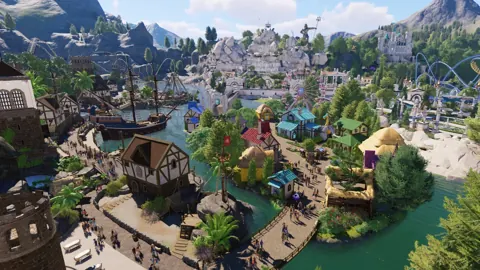 Planet Coaster 2 System Requirements: Can You Run It?Compare Planet Coaster 2 system requirements for CPU, GPU, RAM, and storage. Check your PC specs and explore console and cloud options before you buy.
More in Platforms
See all Platforms
Continue exploring
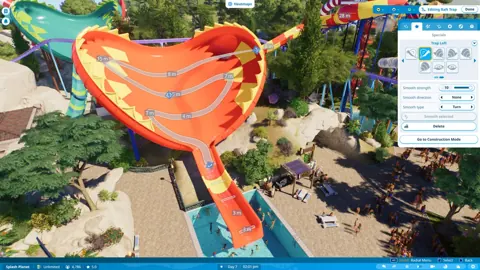
Planet Coaster 2 Multiplayer: How to Play With Friends
Planet Coaster 2 multiplayer lets you share parks, take turns building, and grow a franchise with friends. Learn how co-op and cross-platform sharing work.
Planet Coaster 2 Career Mode: Objectives and Park Tips
Master Planet Coaster 2 career mode with tips for scenario objectives, ride pricing, guest happiness, research, power networks, and water park safety.
Join the community
Official channels for news, updates and player help: